Showing posts with label Approve. Show all posts

Sunday, 5 April 2015

How To Download Full Backup Of Blogger Blog Posts

How_to_download_full_backup_of_blogger_blog_posts
Download Full Backup Of Blogger Blog Posts
Namaste :) In this post I'll explain How you can download full backup of your blogger blog. Nowadays every newbie have their own blog. The main purpose to create a blog on blogger.com is to make money with Google AdSense. Because Google AdSense is best choice to show genuine ads on your blogger and make money with it. Read this post 'Approve AdSense In A Minute On Your Blog' to successfully get approved by Google AdSense in very first attempt. Come on the topic, Backup is very important because sometimes your blogger blog gets deleted.  May be it's because your blog is avoiding TOS of Blogger or may be you deleted it by mistake. So in case you loose your all posts of blogger blog. But if you have backup of your blogger blog then you need not to worry you can easily get your all valuable posts. Just upload that backup and you are done! 

So lets start, follow the below mentioned steps accurately to download full backup of your blogger blog - 


How to download full backup of blogger blog ? 


Step 1. First of all login to your blogger dashboard and choose the blog which you want to take backup of. 

Step 2. Then go to > Settings > Other  Here is an option 'Blog Tools' 

Step 3. Click on 'Export blog' and then a pop-up will open. 
backup_all_posts_of_blogger_blog_in_a_minute
Click on Export blog


Step 4. Now click on 'Download Blog' and backup of your blog will start downloading. 

backup_blogger_blog_full_tutorial_easy_way
Download Blog
  
That's it! Now you have full backup of your blogger blog to use in bad situation. To use that backup you have to upload that backup file to the new blog. To do so follow the below instructions. 

How to upload full backup of your blogger blog to another blog ? 


Step 1. Sign in to your blogger blog and open dashboard of your new blog. 

Step 2. Now go to Settings > Other > Blog Tools 

Step 3. Now here you will see three options Import blog - Export blog - Delete blog. 

Step 4. You have to choose 'Import blog' option and a pop-up box will open. 
how_upload_backup_of_blogger_blgo_to_another_blog
Import Blog


Step 5. Now choose your backup file by clicking on 'Browse' button. 

Step 6. Then click on 'Import Blog' button to start uploading your blog backup.
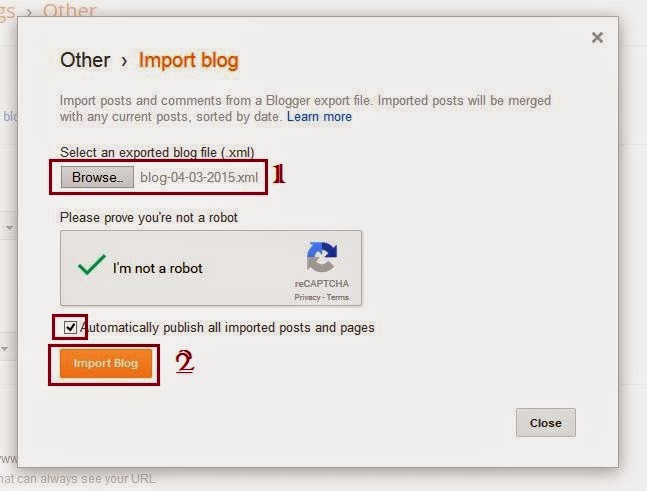
copy_all_posts_of_old_blogger_blog_to_another_blog
Upload Blog


You have done! Now wait a few minutes till backup file successfully uploaded. After that your all posts of old blog will be published automatically on your new blogger blog. :) 

 So enjoy your new blog with all your old posts and pages. :) 

How to backup all posts and pages of Blogger Blog Full Tutorial 


If you liked this post then please share it with your friends on Facebook and other social sites because 'Sharing is Caring' :) 

Keep visiting for more such tutorials and tricks. ;) 

Have any query or questions regarding this post ? Don't hesitate to ask in comments below. 

Share+Like+Comment - Thank You! :)

Saturday, 21 March 2015

Approve Google Adsense In A Minute After Disapproved/Rejected [Full Tutorial] [Latest]

AdSense Disapproved/Rejected Fix
Namaste! :) In this post I am back again with the solution of a very common issue 'AdSense Disapproved/Rejected'. It is as 'Google have any personal problem with me, it always disapproves my application'. ;) But it's not like that, Google AdSense only approve those blogs or website which compile with their terms and conditions. But if your blog or website disapproved for AdSense, then this post is for you and its very helpful. 
As I also faced the same problem and I was tired because every time I apply for AdSense, only one email from Google AdSense 'Unfortunately after reviewing your blog/website we are enable to approve your application at this time' :( Isn't it ridicules ? Yes it is. But after so many attempts I got success, finally Google AdSense Approved on my blog/website.
And now I can show ads on my blog without any further issue. And it's ultimate and very simple trick to get Approved for Google AdSense. You can also find many posts and articles on web about 'How to get fully Approved Google AdSense'. But most of them are useless and some are very difficult. 
But after read this post you won't need to find another solution for this issue, because it's confirmed working and tested by me. And by this method you will definitely get Fully Approved AdSense Account for your blog/website. 
So lets start and follow the below steps accurately, if you want to Approve Google AdSense on your blog/website:

Steps to be followed - 
Step 1. First of all create a YouTube Channel and upload some unique videos. [Don't upload someone's else video]
Step 2. Now after that enable Monetization on your YouTube videos. To do so go to My channel > Videos Manager > Channel > Monetization and enable Monetization.
adsense_approval_trick_confirmed_working_2015
google_adsense_disapproved_fix
Enable Monetization on YouTube Channel
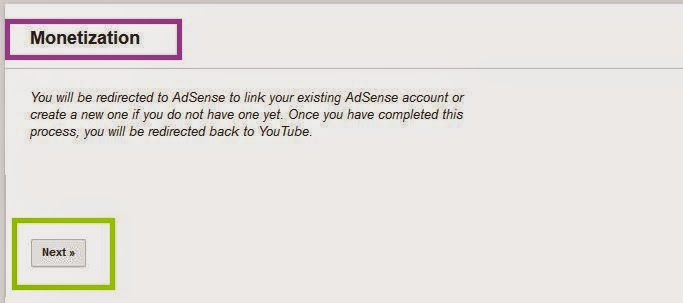
 Step 3. Now YouTube will ask you to associate an AdSense account with your YouTube Channel to get revenue. 
Step 4. Then associate AdSense account by following screen instructions. [Go to > Here! and click Next ]
enable_monetization_on_youtube_channel
Associate AdSense Account With YouTube Channel

Step 5. Now after that you will get an email from Google AdSense that 'Your AdSense account is approved to show ads on your YouTube videos' 

Step 6. Now go to your AdSense account make sure that it's fully activated.

Step 7. Then go to your blog dashboard on which you want to apply AdSense and navigate to Settings > Basic > Permissions > Blog Authors, here click on +Add authors and enter that Gmail id on which you got approved AdSense for YouTube and click Invite.


adsense_approve_on_your_blog/website_within_a_minute
Add New Author


Step 8. Then open your AdSense approved email id and you will find an email of invitation to contribute for blog, open it and accept invitation.

Step 9. Now go to you Blog dashboard > Earnings > Switch account and use your approved email id and click on Continue.


google_adsense_account_approval_trick_working
Switch AdSense Account
Step 10. That's it you will see a message that 'Congratulation! The AdSense widget has been added to your blog template.' Now click on Continue and setup ads on your blog/website. :)


adsense_approved_on_blog/website_in_a_minute
AdSense Approved 
Now you can show ads on your blog/website without any issue. And by using this method you need not to wait a long to get reply from AdSense. So guys I hope you enjoyed this tutorial. :) 
I also created a video of this, by which you can better understand the steps. So watch the full video and enjoy your fully Approved Google AdSense Account :) 

How To Approve Google AdSense On Blog In A Minute [Working]


So if you liked this post, please share this post with your friends on Facebook and other social sites because 'Sharing is Caring' :)


If you have any query or questions regarding this post, then don't hesitate to ask in comments below. We will reply ASAP. :) 


Share+Like+Comments - Thank You! ;)